This week I built my first Firefox Extension
For a very long time I have used a Youtube extension for Firefox called BetterYT, or something like that. Unfortunately for some reason this extension cannot be found anymore in the addons store. One of the features that I used the most was a controller for the speed of the video. I could easily scroll with the mouse and it would fine adjust the speed of the video, without me having to click in the settings of the video.
So I decided to build it my own, how hard could it be?
Getting started on Firefox Extensions
First I accessed Mozilla’s documentation. Basically you create a manifest.json file with a script that will run on specific pages. Mine ended up like this:
 1{
 2  "browser_specific_settings": {
 3    "gecko": {
 4      "id": "speedify@yourdomain.com",
 5      "data_collection_permissions": {
 6        "required": [
 7          "none"
 8        ]
 9      }
10    }
11  },
12  "manifest_version": 2,
13  "name": "Scrolling speed for youtube",
14  "version": "1.0",
15  "description": "Adds a scrolling speed option",
16  "content_scripts": [
17    {
18      "matches": [
19        "*://*.youtube.com/watch*"
20      ],
21      "js": [
22        "speedify.js"
23      ]
24    }
25  ]
26}
In order to upload your addon to the Mozilla store, you need the browser_specific_settings property. More can be found in the docs.
Then we have some basic information about our extension, such name, version and description. Finally we have the content_scripts, which
is where you tell the extension in which sites to run and what script.
Script
Our script is very simple: get the video and the controllers elements, and create a span element that changes the video playback speed when scrolling.
Lets first get our elements. If we inspect a youtube video page we can easily find our video element, as well as the controllers. More specifically,
we want the right-left controllers, which is on the right side of the video bar and on the left side of those controllers (I’m not sure why they
separate them like this but oh well).
1  const video = document.querySelector('video')
2  const controls = document.querySelector('.ytp-right-controls-left')
Then, we create our span and set its content to the playback rate of the video:
1  const speedDisplay = document.createElement('span')
2  speedDisplay.textContent = video.playbackRate.toFixed(2) + ' x'
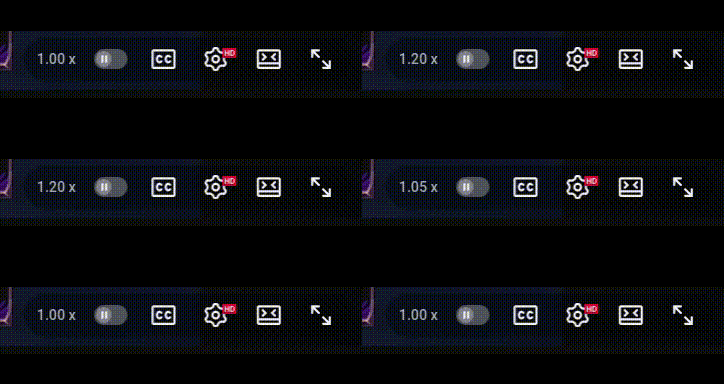
Finally, we add the wheel functionality. I actually found out that the wheel and scroll actions are different for the API. In this case we use the wheel
to get the deltaY from the event, which gives us the direction of the wheel as a positive or negative number. Based on that we change the video playback
rate accordingly. I also set an option to click it to reset the speed as well:
 1  speedDisplay.addEventListener('wheel', (event) => {
 2    event.preventDefault()
 3    speedDirection = event.deltaY
 4    if (speedDirection < 0 && video.playbackRate > 0) {
 5      video.playbackRate += 0.05
 6    } else {
 7      video.playbackRate -= 0.05
 8    }
 9    speedDisplay.textContent = video.playbackRate.toFixed(2) + ' x'
10  })
11
12  speedDisplay.addEventListener('click', () => {
13    video.playbackRate = 1
14    speedDisplay.textContent = video.playbackRate.toFixed(2) + ' x'
15  })
That’s it! I added an extra style to match youtube’s and there we have it.
Check it out if you want to try yourself on GitHub